Released in early 2022, the realme Book Enhanced Edition Air is a lightweight 14-inch laptop designed for users who prioritize a balance of power and portability. Under ideal conditions, it offers up to 12 hours of mixed-use battery life. In real-world scenarios—such as web browsing, office tasks, and light media consumption—users can typically expect 7 to 10 hours on a single charge.
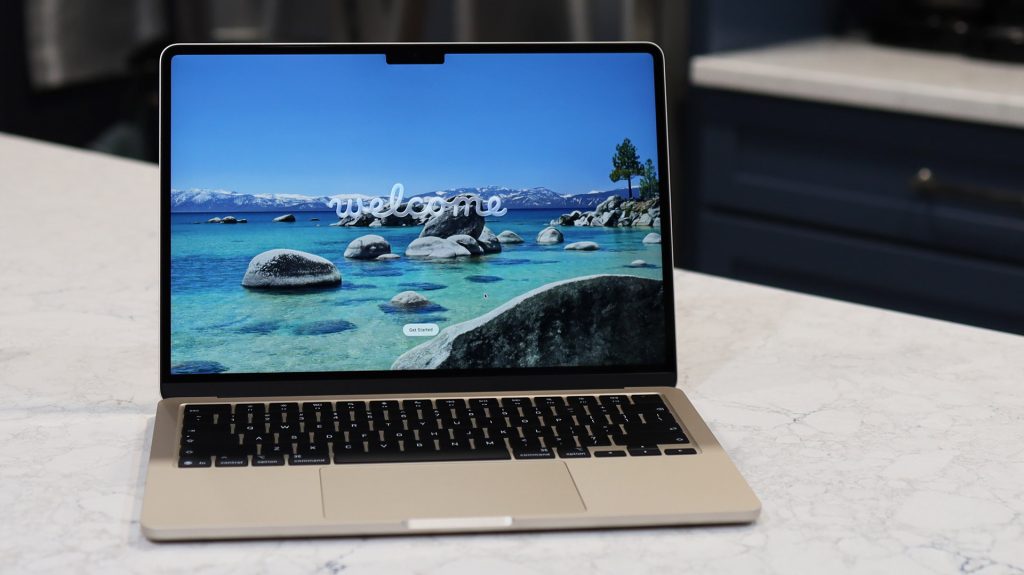
However, like all lithium-ion components, the battery capacity of the realme Book will naturally degrade over time. Recognizing the right time for a replacement is essential to avoid unexpected shutdowns and maximize the overall lifespan of your device.
Understanding Battery Lifespan Expectations
The typical 54Wh battery in this model is rated for approximately 300 to 500 full charge cycles. Under standard daily use, you can expect stable performance for about 2 to 4 years. Beyond this point, capacity usually drops to around 80% of its original state (roughly 43Wh).
Several factors can accelerate this chemical aging process:
- Exposure to high temperatures.
- Frequent “deep discharges” (letting the battery hit 0%).
- Keeping the device at a constant 100% charge for extended periods.
- Running high-load tasks while disconnected from a power source.
Warning Signs: When to Replace Your Battery
Rather than waiting for a total hardware failure, monitor your laptop for these common warning signals:
- Significant Runtime Drop: If your laptop now struggles to last 2 to 4 hours under the same workload that previously yielded 7 to 10 hours, the battery is heavily degraded.
- Erratic Power Levels: The battery percentage may drop rapidly in “chunks,” or the device might shut down unexpectedly even when the indicator shows 20–30% remaining.
- Charging Irregularities: This includes abnormally slow charging, failing to reach 100%, or the battery icon displaying errors.
- Physical or Safety Hazards: Visible swelling (bulging chassis or keyboard), excessive heat during normal use, or unusual odors are critical red flags. If these occur, seek professional assistance immediately to prevent fire risks.
- System Notifications: Windows may explicitly display a warning message suggesting your battery requires service.
How to Generate a Precise Health Report
To get an accurate assessment of your battery’s health, you can generate a Windows Battery Report:
- Open the Command Prompt as an Administrator.
- Type the following command and press Enter:
powercfg /batteryreport - Navigate to your user folder and open the generated HTML file.
Compare the Design Capacity (54,000 mWh) with the Full Charge Capacity. If the latter has fallen below 80% of the original design, it is time to consider a replacement for an optimal experience.
Tips for Extending Battery Longevity
Adopting healthy charging habits can add years to your battery’s functional life:
- The 20-80 Rule: Whenever possible, keep your battery level between 20% and 80% to reduce stress.
- Optimize Settings: Use Power Saving mode and lower your screen brightness when high performance isn’t required.
- Climate Control: Avoid extreme temperatures; the ideal operating range for your laptop is between 15°C and 35°C.
- Software Maintenance: Regularly update your BIOS, drivers, and Windows system via realme support to ensure power management efficiency.
- Periodic Calibration: Every 1–2 months, charge the battery to 100%, discharge it to around 15%, and then recharge it fully to keep the sensor accurate.
- Quality Power Delivery: Always use the original 65W charger or a high-quality, compatible Power Delivery (PD) adapter.
By following these maintenance strategies, your battery can remain in excellent condition well beyond the two-year mark.