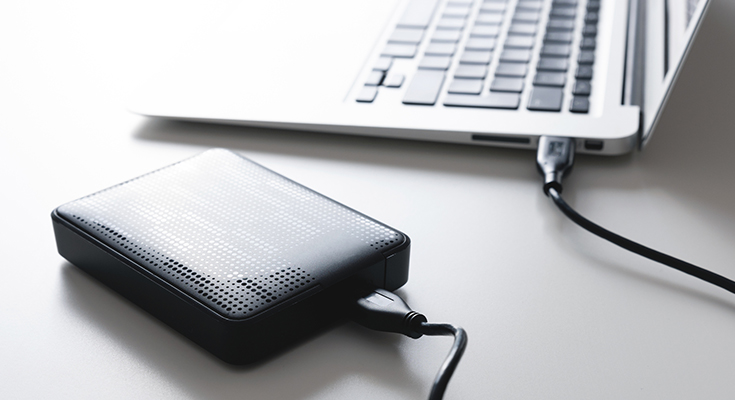
External hard drives are essential for storage and backups, but sometimes your Macbook may not recognize them. This guide outlines the most common causes and provides practical solutions to help you get your drive working again quickly and safely.
Why Your Mac Might Not Detect an External Hard Drive
- Connection problems
Loose、damaged、or low-quality cables and faulty USB/Thunderbolt ports are among the most common issues. Ensure you use a compatible, high-quality cable and test different ports. - Insufficient power supply
Some external drives—especially larger HDDs—require more current than a single USB port provides. This prevents them from spinning up or being detected. Use a self-powered USB hub or a dual-cable setup if needed. - Finder preferences are misconfigured
By default, macOS may not show external disks. If “External disks” isn’t checked in Finder Preferences under both “General” and “Sidebar,” your drive may be connected but invisible. - Incompatible file system or corrupted format
Drives formatted in NTFS may be readable but not writable. Corrupted formats like damaged FAT/exFAT partitions could also prevent detection. - Logical or hardware disk damage
Physical failure (e.g., clicking noises) or partition corruption can stop macOS from mounting the drive. - macOS-related issues
System glitches involving NVRAM, SMC, or outdated drivers may interrupt USB/Thunderbolt detection. macOS updates or third-party software (like antivirus) may interfere.
>>>Battery replaces A1953 for Apple MacBook Pro 15″ A1990 (Mid 2018) – Li-ion 83.6Wh/7336mAh
How to Fix the Problem
- Restart Your Mac
This simple step can often clear temporary glitches that prevent drive detection. - Check Finder Preferences
Go to Finder > Settings (or Preferences), and under both the General and Sidebar tabs, make sure “External disks” is selected. - Try Different Cables and Ports
Use a high-quality cable, and test different USB or Thunderbolt ports on your Mac. Also try a different external drive if available. - Use a Powered Hub
If your drive requires more power than a single port provides, use a USB hub with external power or a dual USB cable. - Open Disk Utility
Go to Applications > Utilities > Disk Utility.
Click View > Show All Devices.
If the drive is listed but unmounted, select it and click Mount.
Use First Aid to repair any file system issues. - Reformat the Drive (if necessary)
If Disk Utility can’t repair the drive, you may need to erase and reformat it using a compatible format like APFS, Mac OS Extended (HFS+), or exFAT. Backup your data first. - Use Terminal
Open Terminal and typediskutil listto see if your Mac detects the drive. If so, you can mount it manually using:diskutil mount /dev/diskX
(ReplacediskXwith the actual disk identifier.) - Reset NVRAM and SMC
On Intel Macs, resetting these can fix hardware detection issues.
Reset NVRAM: Hold Option + Command + P + R at startup.
Reset SMC: Varies by model; follow Apple’s official instructions. - Check System Information
Go to Apple Menu > About This Mac > System Report, and under USB or Thunderbolt, check whether your external drive is listed. - Try Another Mac
Connect the drive to another computer to determine whether the issue lies with the drive or your Mac.
If none of these steps work, the drive may suffer from serious hardware failure. Seek help from a data recovery service or consider replacing the drive.
>>>Battery replaces A2389 for Apple MacBook Air 13 inch (2020 Version) – Li-ion 4380mAh
Tips to Prevent Future Issues
- Always eject the drive safely before unplugging to avoid file system corruption.
- Keep macOS and firmware up to date to avoid compatibility issues.
- Maintain your cables and ports, keep them clean, and replace worn connectors.