The dreaded “No Bootable Device” message appears when a computer fails to find a valid boot source. This disrupts normal startup and leaves users stranded at the BIOS screen. In this article, we’ll investigate the common causes behind this error and offer effective solutions to get your system running again.
Incorrect Boot Order or Disabled Device
- Wrong boot sequence: If BIOS is set to boot from USB, CD/DVD, or network before the hard drive, it may skip the actual OS drive.
- PXE or network boot detected first: Misconfigured UEFI/BIOS may default to PXE boot, resulting in errors like PXE‑E61.
Solution: Enter BIOS/UEFI (usually via F2, F10, DEL), adjust the boot order to prioritize your HDD/SSD, disable unnecessary PXE/network boot, and save changes.
Connection or Hardware Issues
- Loose or damaged cables: Faulty SATA or power cables can prevent BIOS from recognizing the drive.
- Drive failure or motherboard fault: Component failures are frequent culprits.
Fix: Power off and reseat cables; replace if necessary. If BIOS still doesn’t detect the drive, test it using diagnostics (e.g., F12 on Dell), or try connecting it to another computer to rule out HDD vs. motherboard failure.
Corrupted Boot Record or Partition
- Damaged MBR or BCD: The BIOS won’t find OS instructions when these structures are corrupted.
- Partition not marked active: If no partition is active, BIOS can’t boot the OS.
Solution: Boot from Windows installation media → Repair → Command Prompt. Then run commands:
bootrec /fixmbr bootrec /fixboot bootrec /scanos bootrec /rebuildbcd diskpart → select partition → active This rebuilds startup records and marks the system partition correctly.
Corrupted System Files or Disk Errors
- File system corruption/bad sectors: Disk errors can prevent boot files from loading.
- Missing or damaged BOOTMGR: This vital loader may be missing or corrupted.
Solutions:
- Use CHKDSK:
chkdsk C: /f /r. - Use SFC:
sfc /scannow /offbootdir=C:\ /offwindir=C:\Windows. - Perform Startup Repair through Windows recovery environment to restore BOOTMGR.
CMOS/UEFI/BIOS Reset Needed
- BIOS/UEFI settings may be corrupted due to a failing CMOS battery or random resets.
- Mode mismatch: UEFI vs. Legacy settings don’t match the installed OS format.
Fix: Clear CMOS (e.g., remove battery & hold power), restore factory BIOS settings, then ensure correct SATA mode (AHCI/RAID) and matching boot mode (UEFI or Legacy).
When All Else Fails
If repairs don’t work:
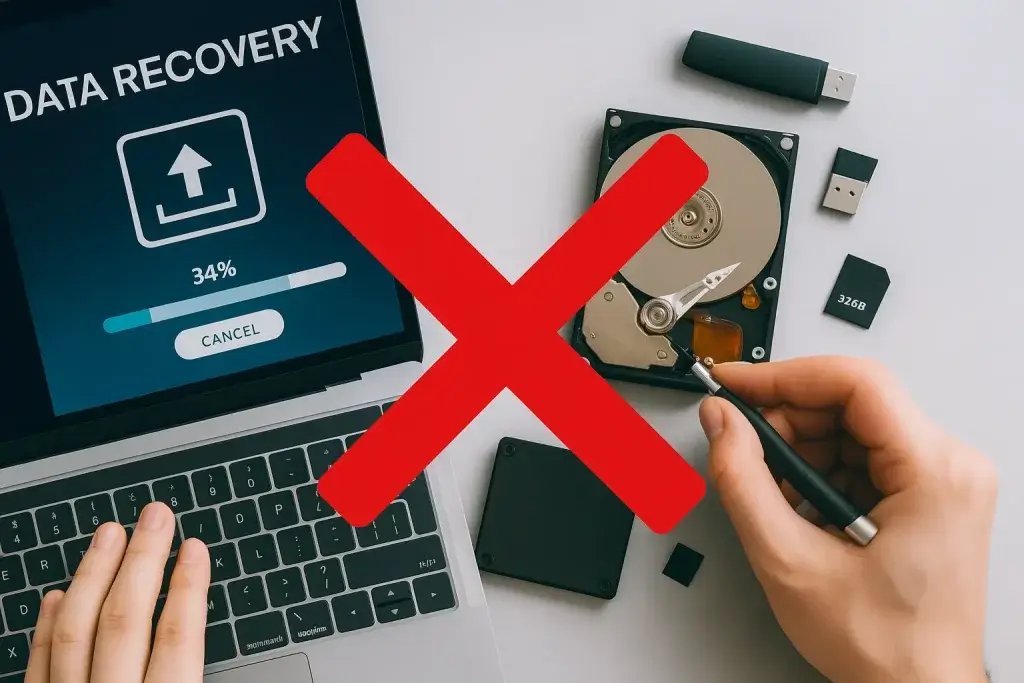
- Backup data (via external docking, USB OS, or data-recovery tools like EaseUS).
- Replace the hard drive and reinstall Windows.
- Seek professional help if hardware or data recovery is complex.
The “No Bootable Device” error stems from one of three root issues: BIOS/boot configuration, hardware failure, or corrupted boot/system files. A methodical approach—checking cable connection, BIOS settings, boot records, and file systems—usually solves the problem. If repair tools fail, data backup and drive replacement are the final steps.