If your Laptop’s acting sluggish or you’re preparing to wipe it clean and start fresh, here’s a friendly, no‑fluff guide on how to restore a Windows 10 or 11 computer back to its factory defaults.
Preparation
- Back up your personal files (docs, photos, bookmarks) to OneDrive, external drive, or cloud storage.
- Keep a list of apps you’ll need to reinstall.
- Ensure your PC is plugged into power so it won’t shut off during reset.
Reset via Windows Settings (Windows 10 & 11)
Windows 10:
- Go to Start → Settings → Update & Security → Recovery.
- Under Reset this Laptop, click Get started.
- Pick Keep my files or Remove everything.
- Choose Cloud download or Local reinstall (no internet needed).
- Confirm settings and click Reset.
Windows 11:
- Open Settings → System → Recovery.
- Click Reset PC under Recovery options.
- Select Keep my files or Remove everything.
- Choose between Cloud download and Local reinstall.
- Review additional options (e.g. clean the drive, remove stock apps), then confirm to begin.
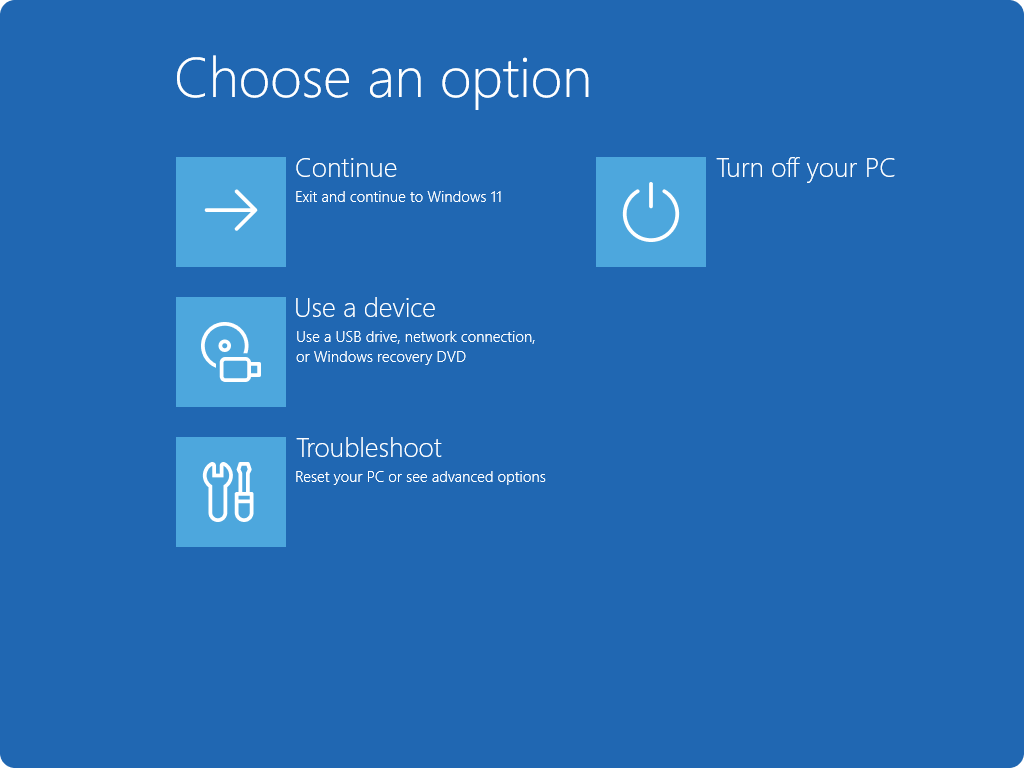
Via Recovery Environment (if Windows won’t start)
- At the sign‑in screen, press Shift + click Power → Restart.
- Select Troubleshoot → Reset this PC, then follow the same steps above.
- If WinRE isn’t enabled, restarting Windows until automatic repair kicks in can work too.
Clean Install Using USB Media (optional)
Use this method if factory reset fails or you’ve forgotten the admin password:
- Download the Media Creation Tool from Microsoft.
- Create a USB installer (min. 8 GB).
- Boot from the USB and choose Custom install, then delete partitions and install.
- This wipes everything and installs a clean version of Windows.
After the Reset
- Check for updates: Go to Settings → Windows Update and install Windows/drivers.
- Reinstall needed apps and restore files from your backup.
- If you sold or donated the device, you’re all set. If keeping it, sign back into Microsoft account, configure settings, and let Windows sync.
That’s it—just make sure your files are backed up before you begin. If you’re clearing the Laptop for a new user or final sale, the Remove everything + clean the drive option gives the most thorough wipe.