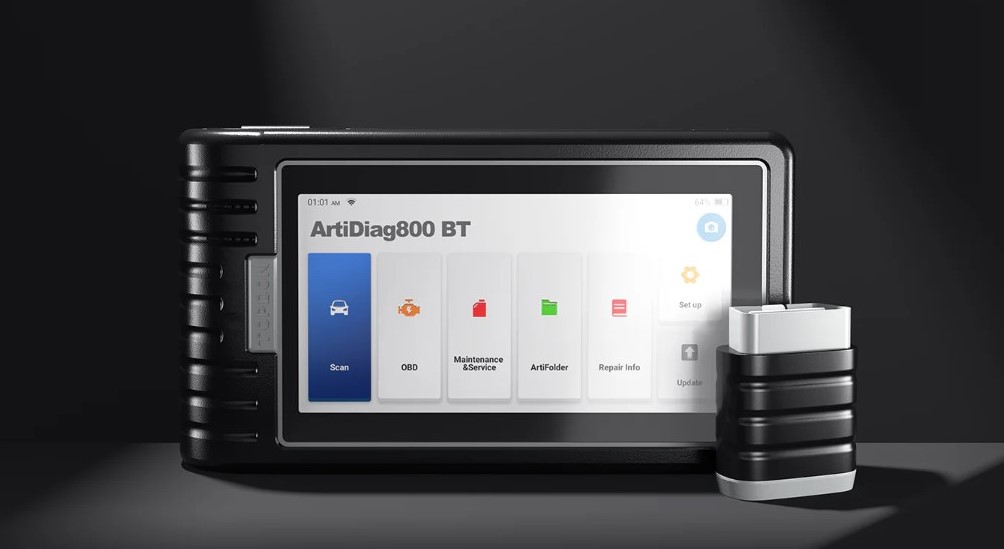
The Topdon ArtiDiag800BT is a powerhouse of automotive diagnostics, offering DIYers and professionals alike a seamless, wireless experience. However, like any precision electronic tool, its longevity and reliability depend on how well you look after it. To ensure your device stays “shop-ready,” follow these essential guidelines for daily maintenance and battery management.
Daily Maintenance: Keeping the Tool Sharp
Routine care prevents hardware failure and ensures the software remains responsive during critical diagnostics.
- Screen and Body Care: The diagnostic environment is often oily and dusty. Use a soft, lint-free microfiber cloth to wipe down the screen. For stubborn grease, dampen the cloth slightly with water or a specialized screen cleaner. Avoid harsh industrial solvents, which can degrade the protective coating of the display.
- VCI Dongle Security: The Bluetooth VCI is the lifeblood of the ArtiDiag800BT. Always return the dongle to its integrated storage slot after use. Leaving it plugged into a vehicle’s OBDII port is a common way to lose or damage the component.
- Storage Environment: When not in use, store the tablet in its original carrying case. Extreme temperatures—either the freezing cold of a winter garage or the blistering heat of a summer dashboard—can warp the casing and damage the internal circuitry.
- Software Hygiene: Periodically clear the cache within the application settings. Regular updates via Wi-Fi are also crucial; they provide not just new vehicle coverage, but also firmware patches that improve hardware efficiency.
When to Charge
To maximize battery health, avoid letting the device drop to 0%. Lithium batteries prefer “shallow” discharge cycles. Aim to plug the device in when it hits 20%, and try to unplug it once it reaches 80-90% if you are not planning an extended diagnostic session.
>>>Battery replaces PC944755-2S1P for Topdon ArtiDiag800BT
Signs You Need a Battery Replacement
You should consider professional battery service or a replacement if you notice the following “red flags”:
- Rapid Depletion: The device drops from a full charge to “Low Battery” within an hour of standard scanning.
- Unexpected Shutdowns: The tablet powers off abruptly even when the indicator shows 30% or more remaining.
- Physical Swelling: If the back casing of the tablet appears warped or the screen starts to lift, stop using the device immediately. This indicates a swollen battery, which is a safety hazard.
- Excessive Heat: The device becomes uncomfortably hot to the touch during normal operation (not while charging).